Every Basic, Premium and Brand Story module in pixels, with character limits. You can check an image against its module right in your browser.
What is Amazon A+ content?
In the A+ Content Manager you choose from three content types. Each one shows in its own section of the detail page:
- Basic A+ content appears in the Product description section with up to 5 modules: images, headers, text layouts and comparison charts with your own products.
- Premium A+ content appears in the same place with up to 7 modules, larger images, video, hover hotspots, carousels and a Q&A module.
- The Brand Story appears in the From the brand section: one carousel with up to 19 cards about your brand, its values and its product lines. You can use it in addition to Basic or Premium A+.
As soon as your A+ content is live, it hides the plain text product description. Amazon advises to keep that field up to date anyway, so fill it in as before. How is shown in the guide to the Amazon product description.
What does A+ content do?
On its A+ Content page, Amazon says Basic A+ content can increase sales by up to 8%, and well-implemented Premium A+ content by up to 20%. The basis Amazon gives for both numbers is its own internal data. Amazon's help page adds that A+ content may raise conversion rates, reduce negative reviews and returns because buyers get their questions answered before they buy, and increase discoverability when paired with ads, deals or coupons.
Whether the text in your A+ modules counts for Amazon search, Amazon doesn't say. Your most important search terms therefore belong in the title, the bullet points and the hidden search terms. The Academy lessons on title optimization and description and backend keywords show how.
Who can use A+ content?
- Professional selling account. You need it in every case.
- Brand Registry role. For branded products, you need a Brand Representative or Reseller role for the brand of the ASIN in Amazon Brand Registry. If your brand is registered but you don't see A+ content, ask your brand administrator for a selling role. How to get into Brand Registry is shown in the Amazon Brand Registry checklist.
- Without a brand: Basic A+ only. Since January 2024, generic ASINs in a Professional seller's catalog have access to Basic A+ content. Premium A+ is not available for them.
- Programs. Amazon also opens A+ content to sellers approved for programs such as Launchpad and Amazon Exclusives.
- Exceptions. A+ content is not yet supported for products sold through Seller Central in Books, Music, Video and DVD. If a retail vendor has already added A+ content to an ASIN, you can't add or edit your own.
Amazon charges no fee for Basic A+ and the Brand Story. If Amazon introduces a fee for new A+ content types, it says it will announce it in the A+ Content tool beforehand, and existing content will not be affected.
A+ content modules and what each one is for
You don't need every module. Pick the ones that answer the questions your buyers ask. Basic modules and their job:
| Basic module | Image (min. px) | Use it for |
|---|---|---|
| Image Header with Text | 970 × 600 | the opening: one image, one promise |
| Image & Dark/Light Text Overlay | 970 × 300 | a short message on a banner, as opener or closer |
| Four Images & Text | 4 small images | four benefits side by side |
| Three Images & Text | 300 × 300 | three uses, variants or steps |
| Single Left/Right Image | 300 × 300 | one topic with room for text: use, care, fit |
| Single Image & Highlights | 300 × 300 | one image plus a short bullet list |
| Single Image & Specs Detail | 300 × 300 | material, dimensions, what's in the box |
| Single Image & Sidebar | 300 × 400 | a main topic plus a side note |
| Comparison Chart | 150 × 300 per product | your own products side by side |
| Technical Specifications | no image | 4 to 16 rows of facts, such as a size table |
| Standard Text | no image | text only, such as how to choose a size |
| Company Logo | 600 × 180 | your logo at the top |
Premium modules that Basic doesn't have:
| Premium module | Image (min. px) | Use it for |
|---|---|---|
| Full Background Image | 1,464 × 600, mobile 600 × 450 | a large opener across the full width |
| Hotspot Image | 1,464 × 600, mobile 600 × 450 | 2 to 6 points on one image, such as pockets or functions |
| Navigation Carousel | 1,464 × 600, mobile 600 × 450 | 2 to 5 tabs, such as one per use case |
| Image Carousel | 1,464 × 600, mobile 600 × 450 | 2 to 6 cards to swipe through |
| Comparison Carousel | 488 × 700, mobile 600 × 450 | 3 to 5 of your products with 3 to 7 rows |
| Video & Text, Hero Video | 800 × 600 or 1,464 × 600 preview | showing how the product is used |
| Q&A | no image | 2 to 5 questions with answers |
The full list with mobile sizes and character limits per field is in A+ content sizes. How to make a product video from a photo of your product is shown in Amazon product video.
Amazon A+ content examples: 6 layouts, module by module
Six layouts for typical situations, with a leather sneaker and a backpack as example products. All product details are example values: use your own facts.
Example 1: leather sneaker, Basic A+, 5 modules
A story arc that works for many products. The images show A+ content for a leather sneaker that Listimo created. The product is an example, and all images are AI-generated.
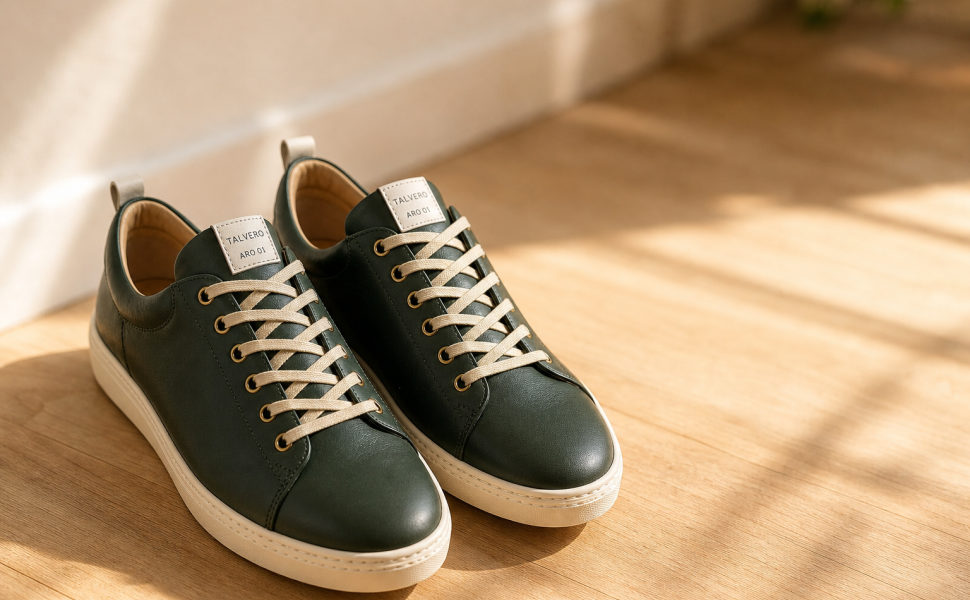
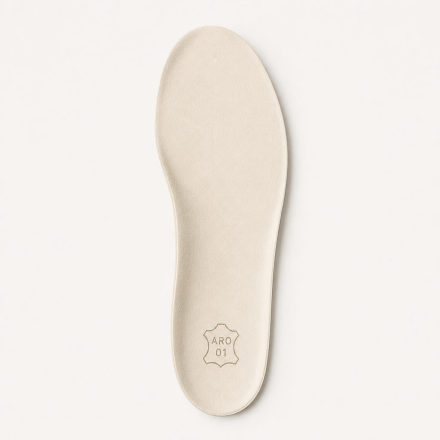
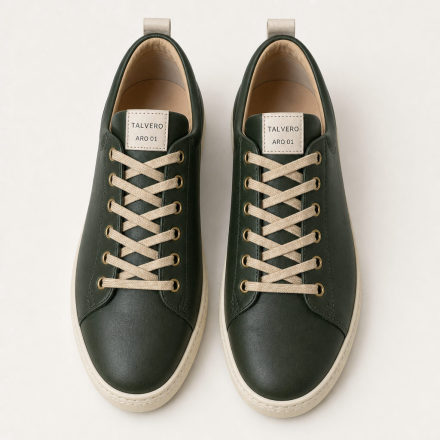
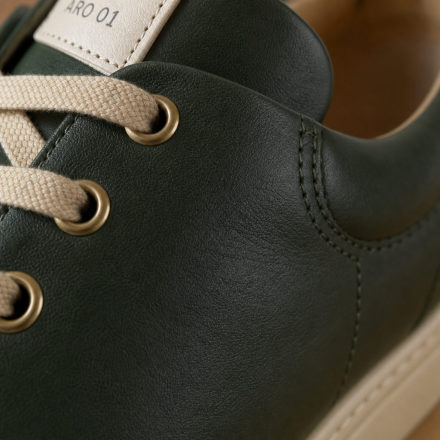
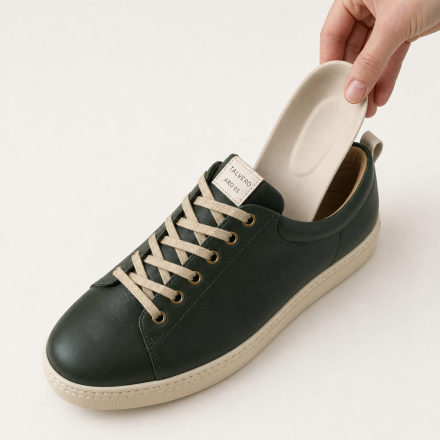
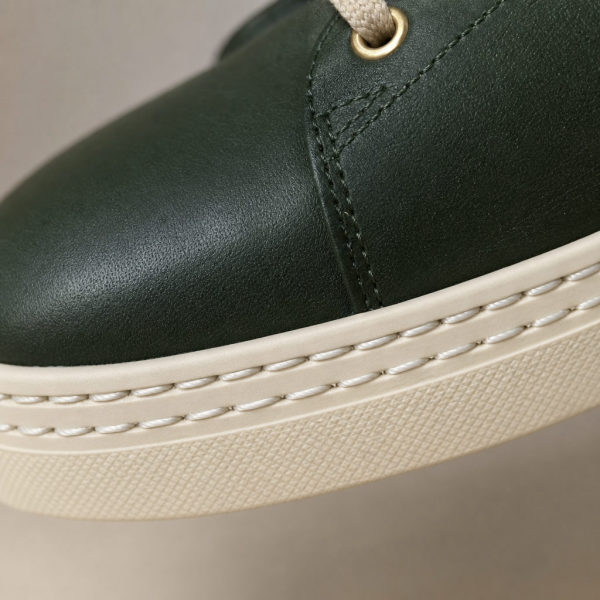
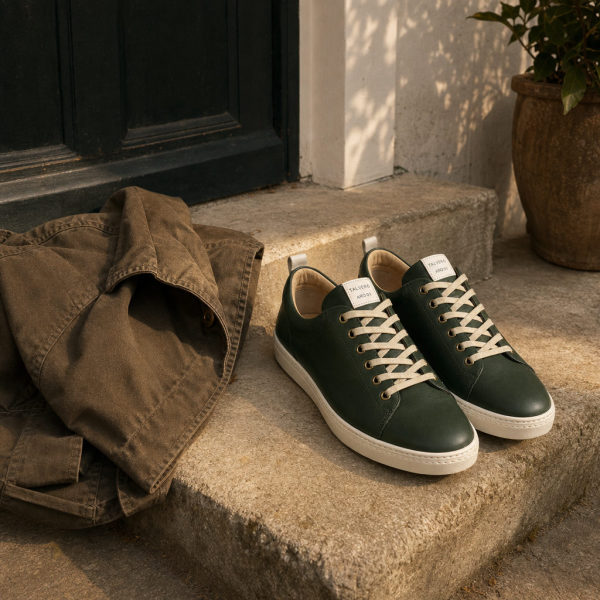

- Image Header with Text: the pair in daylight, one headline with the main benefit, one sentence on who the shoe is for.
- Four Images & Text: one benefit per tile, the benefit first: the removable insole, the clean low shape, the smooth leather, the insole that comes out to air or replace.
- Single Image & Specs Detail: close-up of the stitched sole, with upper, lining, sole material and available sizes in the specs.
- Single Right Image: the shoe in everyday use, with two sentences on where it fits in.
- Image & Light Text Overlay: a calm closing image and one sentence that sums it up before the buyer decides.
Example 2: backpack with many features, Basic A+
For products whose details sell them. The layout leads from the overview to the facts.
- Image Header with Text: the backpack worn on the way to work, headline with the main use, for example “Daypack for Work and Weekend”.
- Single Image & Highlights: the open main compartment, next to it a short list: laptop sleeve with its size in inches, number of inner pockets, opening width.
- Three Images & Text: three details buyers ask about, such as the hidden back pocket, the key clip and the padded straps.
- Single Image & Specs Detail: volume in liters, weight, dimensions in inches and centimeters, outer material.
- Comparison Chart: your three backpack models with volume, laptop size and weight, so buyers pick the right one instead of returning the wrong one.
Example 3: the same backpack as Premium A+, 7 modules
- Full Background Image: the backpack across the full width, a separate 600 × 450 image for mobile.
- Hotspot Image: the open backpack with 2 to 6 hotspots, one per pocket or function.
- Video & Text: a short clip of packing the bag, with two sentences next to it.
- Navigation Carousel: 2 to 5 tabs by use case, such as commute, travel and day hike, one image and a short text each.
- Comparison Carousel: 3 to 5 of your own backpack models with 3 to 7 rows.
- Q&A: 2 to 5 questions from your buyer messages, for example which laptop sizes fit and what the bag measures for cabin luggage rules.
- Technical Specifications: 4 to 16 rows with all measurements and materials.
Example 4: sneaker with a focus on size and fit, Basic A+
For products that come back because they don't fit. Every module answers a fit question.
- Image Header with Text: the shoe from the side, headline on the fit, for example “Regular Width, Room for Your Toes”.
- Standard Text: how to find your size in three steps: measure your foot, compare with the table, choose the larger size if you are between two.
- Technical Specifications: a size table with US, UK and EU sizes and the insole length in inches and centimeters.
- Single Left Image: the insole on a ruler, with a note on how to compare it with a shoe that fits you.
- Four Images & Text: width, toe box, heel and insole thickness, one tile each.
Example 5: brand with several products, Basic A+
For brands that sell a product line. The goal is that buyers find the right model inside your brand.
- Company Logo: your logo, 600 × 180.
- Image & Dark Text Overlay: what the brand stands for, in one sentence.
- Three Images & Text: the three colors of the sneaker, each with the look it goes with.
- Comparison Chart: your low sneaker, high top and slip-on side by side: upper, sole, weight, width. Amazon only allows comparisons with products of your own brand.
- Single Image & Sidebar: care in a few steps, with a short note on the leather in the sidebar.
Example 6: Brand Story for the sneaker brand
The Brand Story sits in the From the brand section and can run alongside Basic or Premium A+. It is built from cards in a carousel:
- Background image with logo (1,464 × 625, mobile 463 × 625): title up to 30 characters, text up to 135.
- About the brand: logo 315 × 145 and a description of up to 450 characters: who makes the shoes and how.
- Image card (362 × 453): one look behind the scenes, such as the leather before it is cut.
- Four ASIN card: four other products of the brand, images 166 × 182.
- Questions card: three questions about the brand, such as where the shoes are made.
A+ content template to copy
The Basic layout from example 1 as a template. Behind each field: Amazon's character limit and the length we recommend, because long text in modules is hard to read on a phone. Amazon itself recommends paragraphs of at most three sentences.
A+ CONTENT TEMPLATE: BASIC A+, 5 MODULES
max. = Amazon's character limit, aim for = a length that still reads well on a phone

MODULE 1 · Image Header with Text · image 970 × 600
Headline: [the main benefit in one line]  max. 150, aim for 40 to 60
Subheadline: [who it is for or where it is used]  max. 150, aim for 40 to 80
Body: [1 to 3 sentences that back up the headline]  max. 6,000, aim for 150 to 300
Alt text: [what the image shows]  max. 100

MODULE 2 · Four Images & Text · 4 images
Main headline: [what the four points have in common]  max. 200, aim for 30 to 50
4 times:
  Headline: [one benefit]  max. 160, aim for 20 to 40
  Body: [1 or 2 sentences: the fact behind the benefit]  max. 1,000, aim for 80 to 160
  Alt text: [what the image shows]  max. 100

MODULE 3 · Single Image & Specs Detail · image 300 × 300
Headline: [material and build]  max. 200, aim for 30 to 50
Body: [1 to 3 sentences on material and make]  max. 400, aim for 150 to 300
Specs: [dimensions, weight, material, what's in the box]  max. 1,000
Alt text: [what the image shows]  max. 100

MODULE 4 · Single Left/Right Image · image 300 × 300
Headline: [the product in use]  max. 160, aim for 30 to 50
Body: [where, when and how, 2 or 3 sentences]  max. 1,000, aim for 150 to 300
Alt text: [what the image shows]  max. 100

MODULE 5 · Image & Light Text Overlay · image 970 × 300
Headline: [the summary in one line]  max. 70, aim for 30 to 50
Body: [one closing sentence]  max. 300, aim for 80 to 150
Alt text: [what the image shows]  max. 100
For Premium A+, replace module 1 with a Full Background Image (headline up to 80 characters), and add a Hotspot Image (2 to 6 hotspots, title up to 50 and description up to 200 characters) and a Q&A module (2 to 5 questions, question up to 120 and answer up to 250 characters).
Fill the fields with what comes up again and again in reviews, buyer messages and return reasons, not with sales talk. Amazon's guide lists “answer common customer questions” as a best practice.
A+ content ideas by goal
- Fewer returns for size and fit. A size table in Technical Specifications plus a Standard Text on how to measure. Works for shoes, clothing, bags and furniture.
- Fewer care questions. A Single Left/Right Image with three care steps, or a Regimen Carousel in Premium A+ for steps in a fixed order.
- The right model inside your brand. A comparison chart of your own products. Amazon allows comparisons only with products of the same brand; comparing categories, such as leather vs. canvas, is fine. Amazon Ads names helping customers explore your other products as one of the goals of A+ content.
- Questions before the purchase. The Q&A module in Premium A+, or a Standard Text in Basic A+, filled with the questions from your buyer messages. Amazon Ads links answering questions in A+ content to fewer returns and fewer negative reviews.
- What's in the box. Single Image & Specs Detail with everything that comes with the product, and what doesn't.
- Use you can't show in a photo. Video & Text in Premium A+.
- Readable on mobile. Large text in images, little text per module. Amazon rejects small text that can't be read on mobile devices.
- Test instead of guessing. With Manage Your Experiments you can A/B test A+ content. The ASIN must belong to your brand and have had enough traffic in recent weeks to qualify.
A+ content guidelines: what Amazon doesn't allow
- Prices, discounts and promotional words such as “affordable”, “cheap”, “bonus” or “free”, and calls like “buy now” or “add to cart”.
- Time references such as “now”, “new” or “latest” and holiday references. In the Brand Story they are allowed.
- Comparisons with competitors in any form. Comparison charts may only show products of your own brand.
- Warranty and guarantee information, satisfaction claims and claims like “#1 rated” or “best-selling”.
- Environmental claims like “eco-friendly”, “biodegradable” or “compostable”. “Recyclable” needs a note with supporting information.
- Shipping details, QR codes, links, phone numbers, email addresses and anything that sends buyers away from the page, including to your other products.
- Quotes from customers or private individuals. Awards need the year and the awarding body and may not be older than 2 years.
- Blurry or low-quality images, watermarks, animated images and images that are already in your image gallery.
- Spelling and grammar errors, text in all caps and HTML tags. Amazon's style rules: spell out numbers under 10, use serial commas and capitalize each major word in a header.
Files: JPG, PNG or BMP in RGB, under 2 MB per file, at least 72 dpi. Every image gets an alt text that describes it; alt text that doesn't describe the image can lead to a rejection.
AI-generated people: If an image shows photorealistic people who were entirely generated by AI, it needs the keyword contains-synthetic-performer in its metadata. When you upload to the A+ Content Manager, you can tick “AI-generated people” and Amazon adds it for you. Whether a file is already tagged is checked by the AI image label checker.
How to create A+ content in Seller Central
- Start a project. In Seller Central, open the A+ Content Manager (under Inventory on amazon.com, under Advertising on amazon.co.uk), click Start creating A+ content, name the project and choose the language.
- Fill the modules. Choose modules, enter the text, upload images to the media library and add an alt text to each image.
- Preview. Check the desktop and the mobile view.
- Apply ASINs. One content can apply to several ASINs, for example all variants of a product.
- Submit. The review can take up to seven business days, longer in the holiday season. After approval, the content is live within 24 hours. You can have up to 20 submissions pending at once.
A+ content only shows on the page in the language it was published in. If you sell on several marketplaces or languages, plan a version for each language. Amazon says it may also create language variations automatically, so check what is live in each store.
A+ content not showing or rejected?
Not showing
- Still in review. Up to seven business days, longer in the holiday season. Amazon doesn't accept requests to speed it up.
- Approved, but not yet live. Publishing takes up to 24 hours after approval.
- Error on the ASIN. Under Applied ASINs, an ASIN with the status Error shows the reason under Details. A common cause: the brand name on the listing doesn't exactly match the name in Brand Registry (case sensitive, extra spaces or hyphens count), or the GTIN or the item type doesn't fit.
- Wrong language. Content published in Spanish only shows on the Spanish language page, not on the English one.
- Retail vendor content. If a retail vendor has added A+ content to the ASIN, theirs is shown and you can't add your own.
- Collapsed. Amazon may show A+ content collapsed by default, with one click to expand. Following the recommendations in the Content quality analysis tab of the A+ Content Manager makes the expanded view more likely.
- Status Published, but nothing on the page. Amazon names a technical error as the cause and recommends resubmitting the project. If that doesn't help, contact Selling Partner Support.
Rejected
The reason is in the A+ Content Manager: open the project and look at the top section. Causes that Amazon names in its help pages:
- low-quality or blurry images, or too much white space,
- text that is blurry or too small to read,
- claims, guarantees or warranty information,
- prices, promotions or contact details,
- spelling or grammar errors and alt text that doesn't describe the image,
- words on Amazon's list of prohibited keywords, also in image text: then the A+ Content Manager doesn't let you submit at all.
Fix the content and submit it again. Your existing A+ content stays on the page until the new version is approved. If the preview says “reduce KB size”, make the image files smaller or use fewer images.
Create A+ content with AI
Listimo creates A+ content for an existing listing by ASIN, or together with a new listing from one photo of your product. Basic A+ comes with 5 modules and 8 images, Premium A+ with 7 modules and 11 images if Amazon has enabled Premium A+ for your brand. The images come in Amazon's module sizes, with all module copy and alt texts, ready for the A+ Content Manager.
The A+ step reads your finished listing copy and your photos and builds on them instead of repeating them. The copy leaves out what Amazon rejects: no prices, no warranty claims, no empty superlatives. Listimo writes in the language of the marketplace, for 12 Amazon marketplaces in Europe and the US. If an image shows a photorealistic AI person, Listimo sets Amazon's keyword contains-synthetic-performer. You upload the result yourself in the A+ Content Manager; Listimo doesn't need access to your Amazon account.
Check the result anyway: does every image show your product correctly, and is every claim true? You remain responsible for the content, and Amazon reviews it before it goes live. Is your listing already live? The free listing checker shows whether it has A+ content and where it loses points. For a new product, start in the Amazon listing generator. More on structure and approval in the Academy lesson A+ content without an agency.
Frequently asked questions
What is A+ content on Amazon?
A+ content is a section of image and text modules on the Amazon product detail page. Brand owners and resellers with a Brand Registry role create it in the A+ Content Manager in Seller Central. Basic and Premium A+ appear in the Product description section and hide the plain text description; the Brand Story appears in the From the brand section.
Is Amazon A+ content free?
Amazon charges no fee for Basic A+ and the Brand Story. Amazon's A+ Content guide says Premium A+ is also available at no additional cost. You need a Professional selling account, and the images and copy cost you time or money to produce.
Can I use A+ content without Brand Registry?
Only Basic A+, and only for generic products: since January 2024, generic ASINs in a Professional seller's catalog have access to Basic A+ content. For branded products you need a Brand Representative or Reseller role for the brand in Brand Registry. Sellers in programs such as Launchpad and Amazon Exclusives also get A+ content.
What do I need for Premium A+ content?
A Brand Registry role, because generic ASINs only get Basic A+. Amazon's A+ Content help page names two criteria: a published Brand Story on all ASINs you own and at least 5 approved and published A+ projects in the past 12 months. Amazon's newer A+ Content guide says there are no additional criteria. If you have access, the A+ Content Manager shows a banner with a link to create Premium A+ content.
Why is my A+ content not showing?
Check five things: the status is Approved and 24 hours have passed, the ASIN shows no error under Applied ASINs, you are looking at the page in the language you published in, no retail vendor has added A+ content to the ASIN, and the section is not just collapsed. If the status is Published and nothing shows, resubmit the project or contact Selling Partner Support.
More free tools: check which Amazon reviews you can get removed, Rufus checker for the questions buyers ask Amazon's AI, Amazon FBA calculator for the UK and Europe, Amazon FBA calculator for amazon.com, FNSKU label generator, UPC code generator with how to get real UPCs, EAN and UPC check digit calculator, Amazon image requirements checker, A+ content image sizes for every module, AI image label checker for Amazon, GPSR checklist for Amazon, Amazon Brand Registry checklist with trademark fees, unit price calculator for the German Grundpreis, ACOS and ROAS calculator for your ads, search terms byte counter for backend keywords and titles, product description formatter with line breaks, listing checker with a score from 0 to 100. All in one place: free Amazon seller tools. Numbers from over 1,200 checked listings: Amazon Listing Study 2026.
Sources
Amazon details as of November 21, 2026, from Amazon's help pages for amazon.com; the amazon.co.uk page on A+ content names the same Premium A+ criteria. Sales figures are Amazon's own statement based on its internal data. Image sizes and character limits from Amazon's Selling Partner API documentation. This page explains the rules and is not legal advice.
- Sell on Amazon: A+ Content (eligibility, Basic and Premium, sales figures from Amazon internal data)
- Amazon Seller Central (US): A+ Content (who can use it, placement, Premium A+ FAQ)
- Amazon Seller Central (UK): A+ content (same Premium A+ criteria for amazon.co.uk)
- Amazon Seller Central (US): A+ Content guide (Basic vs Premium table, technical requirements, steps)
- Amazon Seller Central (US): Create A+ content (menu path, language variations)
- Amazon Seller Central (UK): Create A+ content (menu path under Advertising on amazon.co.uk)
- Amazon Seller Central (US): A+ content guidelines
- Amazon Seller Central (US): Content publishing status and content rejection
- Amazon Seller Central (US): A+ content FAQ and troubleshooting
- Amazon Ads: How to improve your product detail page for advertising
- Amazon SP-API documentation: A+ Content examples (standard modules, character limits), Sep 9, 2026
- Amazon SP-API documentation: A+ Premium modules, Sep 30, 2026
- Amazon SP-API documentation: A+ Brand Story modules, Sep 30, 2026